The key field
A product in a PSA has two codes, an ID and a UPC, and the file says which one the retailer uses to tell its products apart: its key field.
- Keyed on ID: ID is the retailer's item code, and UPC is usually the barcode.
- Keyed on UPC: UPC is the retailer's own product code, not a barcode. ID is often only a record number, given as the file was written, so the same product has a different ID in each file.
When you open a PSA, Spanner notes a key field other than ID in the document's Comments: open Edit › Edit Document and look for PSA key field: UPC, or PSA key field: UPC + ID for a file that leaves its key field blank, so its products are told apart by both codes together. Treat that as keyed on UPC. No note means ID.
Converting the PSA keeps both codes as they came in Retailer ID and Retailer UPC, so you can change ID and UPC without losing them.
What retailers' files hold
This is what the files we've seen hold. Retailers change their systems, and a file made up for a supplier can differ from the usual, so check a few products in yours.
| Retailer | Key field | ID | UPC | Figures |
|---|---|---|---|---|
| Sainsbury's | ID | The item code: 7 digits, or 11 for some products (the 7-digit code and 4 more). | The barcode. | For each planogram, so each has an outlet of its own. |
| Morrisons | Blank (UPC + ID) | A record number, different in each file. | The MIN, Morrisons' 9-digit item number. | Usually none for each planogram: the Document outlet only. |
| Waitrose | Blank (UPC + ID) | A record number, different in each file. | The line number, 5 or 6 digits. | None for each planogram: the Document outlet only. Each file usually holds one planogram. |
Sainsbury's files also have the 7-digit item code in Description 39 for every product, even those whose ID is 11 digits. Description 4 holds the segment, Description 29 the supplier number and Description 30 the date the file was extracted.
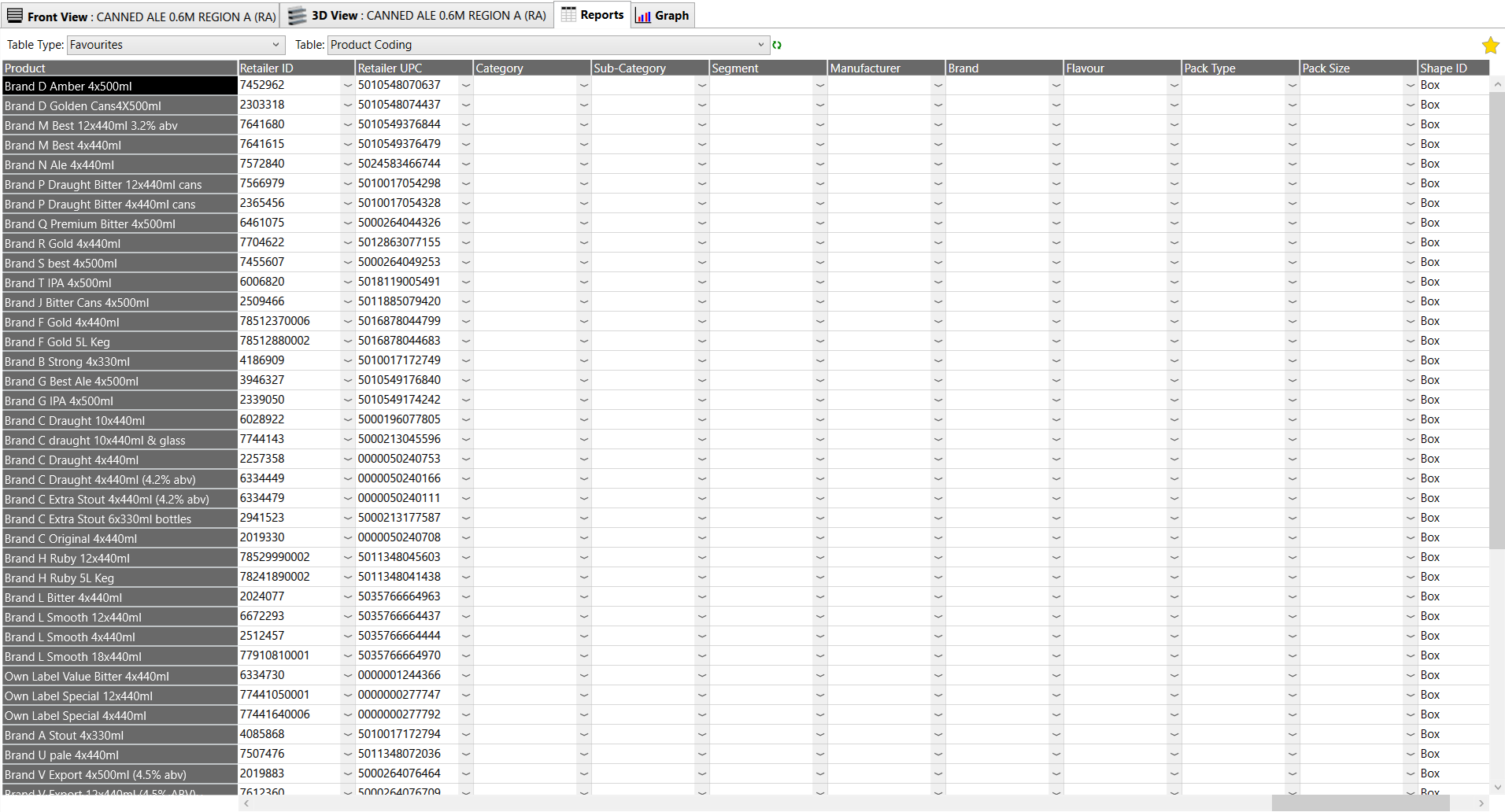
Morrisons files sometimes give the barcode for some products in one of the Description fields. Which one varies from file to file, and many files have none, so look before you rely on it. Across the files we compared, about half the products had a different ID from one file to the next. So an ID from one Morrisons file means nothing in the next: use the MIN.
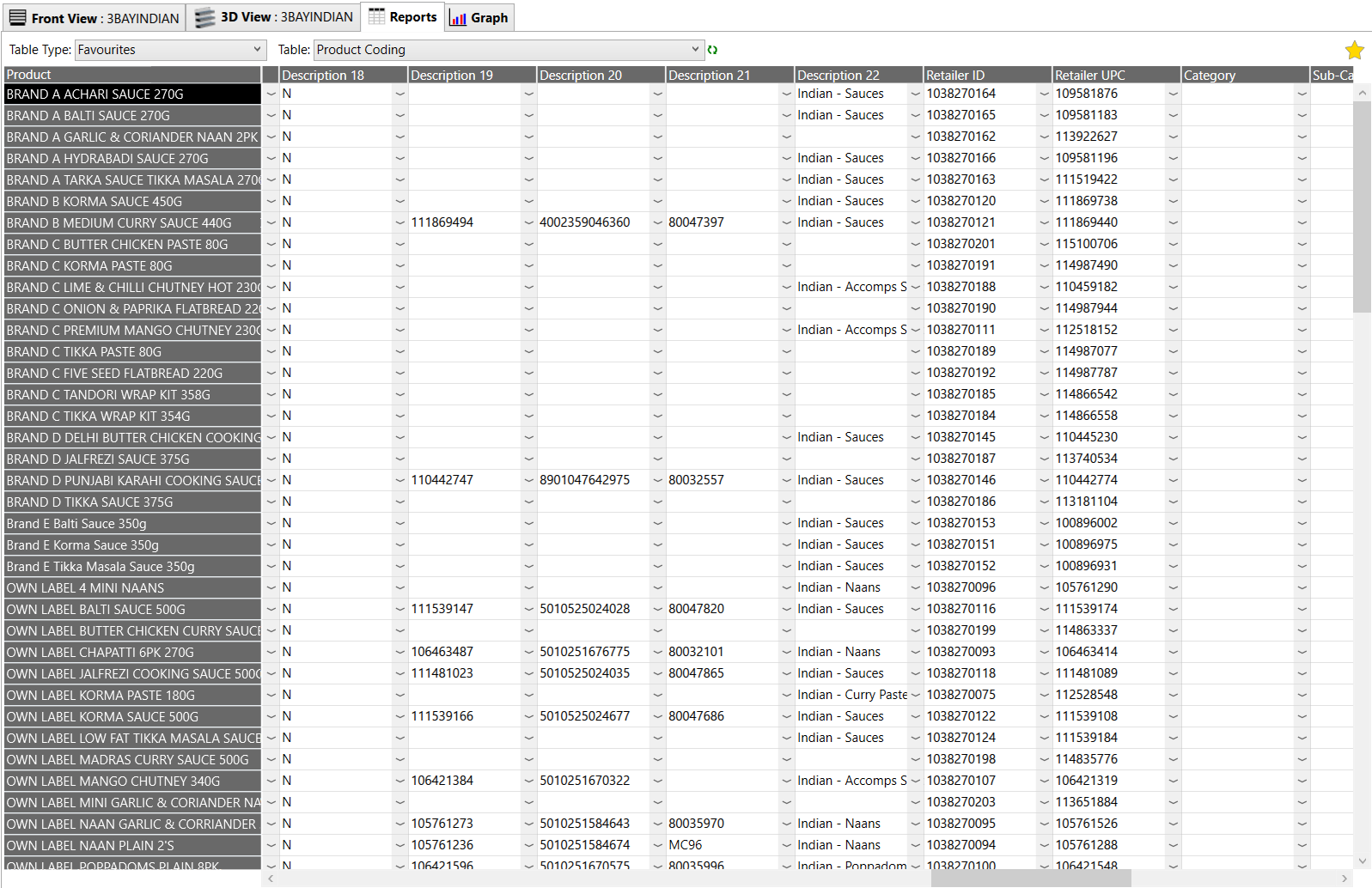
Making the retailer's code the ID
Spanner treats products with the same ID as the same product: when you combine planograms, match a product library on ID, or open the retailer's next planogram. For a retailer keyed on UPC, the ID is a record number that changes from file to file, so make the retailer's own code the ID first:
- Convert the PSA, so Retailer ID keeps the record numbers and Retailer UPC the retailer's code.
- Choose Automation › Common Custom Commands and click Copy UPC to ID.
Each product's UPC becomes its ID. A product with no UPC keeps its ID, and so does one whose UPC is already another product's ID, so two products never become one by accident. Edit › Undo puts the IDs back.
A retailer keyed on ID needs none of this: its IDs are its item codes, the same in every file.
Finding the real barcodes
Product pictures, and Nielsen and Circana data, find products by barcode, so they need the real barcode in UPC. For a retailer keyed on UPC, it isn't there. Retailer UPC keeps the retailer's code, so you can put the barcode in UPC:
From a list of codes and barcodes
A list from the retailer's supplier portal, or your own records, with the retailer's code in one column and the barcode in another, goes in with Importing Classifications from Excel:
- Excel Match: the column of the retailer's codes.
- Spanner Match: Retailer UPC, with no transform.
- The barcode column: import it to UPC Code.
From a description that holds some
Where one of the descriptions holds the barcode for some products, as in some Morrisons files, bring in only those. Don't use Copy Product Strings from that description to UPC: it copies blanks too, so every product without one would lose its UPC. Instead, send the Product Coding report to Excel, keep the rows with a barcode, and import them as above, with the description's column to UPC Code. Or ask Spanner AI, which changes only the products that have one.
From your product library
Products you already have can be found by their description. Ask Spanner AI to match the planogram's products to your library and give you the barcodes it's sure of, to check before they go in.
Then mend any barcodes that lost their leading zeros or check digits with the barcode buttons.
If you'd rather leave UPC as the retailer gave it, keep the barcodes in a classification of their own, such as Real UPC, as Updating a Product Library from a Retailer's Planogram does. Your sales data import can then match on that classification, but pictures still look in UPC.
Codes for the retailer's own sales data
Sales data from Nielsen or Circana finds products by barcode. Sales data from the retailer's own system, such as a supplier portal, uses the retailer's codes. Spanner's import looks for them in each product's Matches, its other codes, so put them there:
- Choose Automation › Enter Automation Command and pick Copy Product Strings.
- Parameter 1: Retailer ID for a retailer keyed on ID, or Retailer UPC for one keyed on UPC.
- Parameter 2: Matches.
Each product's code is added to its Matches, never replacing the codes already there, and blanks are skipped. Do it again with another source to add a second code. For Sainsbury's, add Description 39 too: if the retailer's data uses the 7-digit item code, the products with an 11-digit ID are still found.
The codes go with the products into your product library, so the retailer's next planogram and its sales data find them there too.
Spanner AI spots them
From Spanner 2.5.1.2, when Spanner AI looks at a document it points out two things about the codes:
- IDs that look like record numbers: the key field note in Comments, or numeric IDs running almost without a gap, in a document opened from a PSA. Once the retailer's code is the ID, it stops saying so.
- Real barcodes in a classification that aren't the products' UPCs, such as a description holding barcodes in a Morrisons file, for products whose UPC isn't a barcode. It names the classification, whichever it is.
It offers to fix each, and asks before it changes anything. Part 5 says more.