When to use it
Spanner has three ways to fill in classifications. They suit different jobs.
| Way | Use it for |
|---|---|
| The Product Coding report | A handful of corrections, or one column pasted from Excel, with the products in front of you. See Editing product coding. |
| Import Classifications from Excel | A coding file for many products, matched on a code, that you may receive again next month. This guide. |
| A product library | Coding that comes with dimensions, pack sizes and images, kept for every document you make. See Using a Product Library. |
The import changes products that are already in your document. It does not add products, and it does not add classifications.
Before you start
Check four things first. Most imports that go wrong fail on one of them.
- The file is an Excel workbook,
.xlsx. If you have a.csvor an older.xlsfile, open it in Excel and save it as.xlsx. Then close it in Excel, as Spanner may not be able to read a workbook that Excel has open. - One row for each product, under a row of headings. The headings needn't be on the first row: you tell Spanner which row they're on, and everything above it is ignored.
- One column holds a code that Spanner also has for the product: its ID, its barcode, or a code you keep in a classification. Rows are matched on it. See Matching the codes.
- The classifications are already in your document. If the file has a Flavour column and your document has no Flavour classification, add it first in the Document Editor (Edit › Edit Document).
The document needs products in it too. Until it has some, the menu doesn't show the import.
The import window
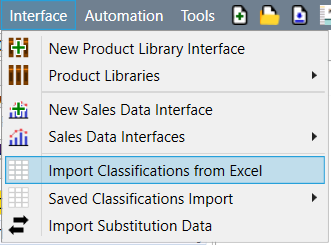
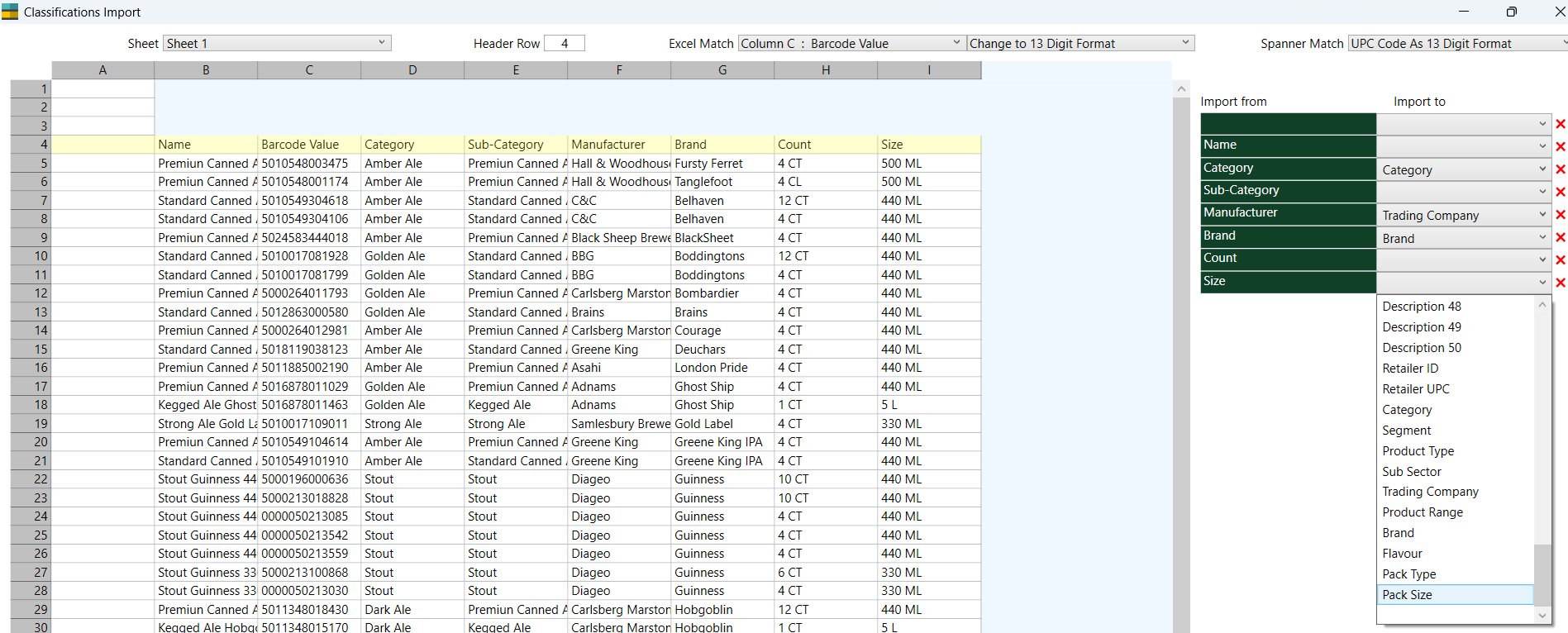
- Choose Interface › Import Classifications from Excel and pick the file. The Classifications Import window opens, showing the first sheet as it is in Excel.
- Sheet: choose the sheet your data is on.
- Header Row: type the number of the row that holds the headings. That row is tinted yellow, so you can see you have the right one.
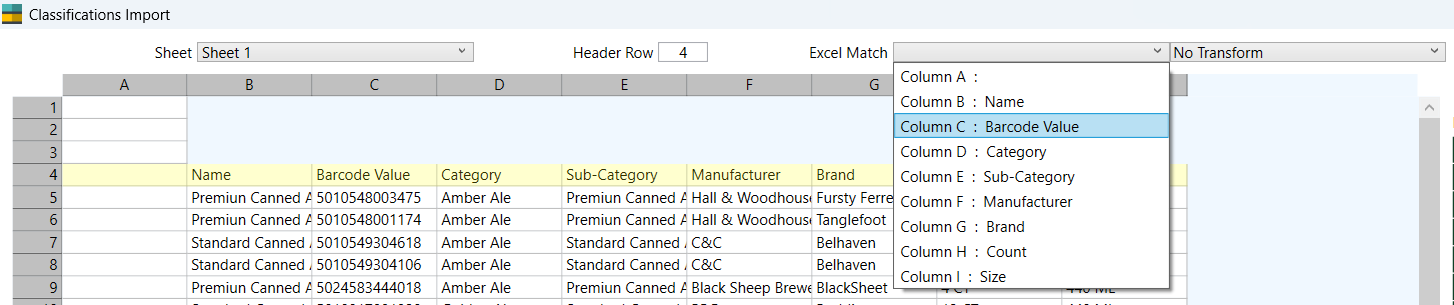
- Excel Match: choose the column that holds the code. Each column is listed by its letter and its heading, such as Column C : Barcode Value.
- The transform, the list to the right of Excel Match: leave it at No Transform unless the codes need tidying before they'll match. See Matching the codes.
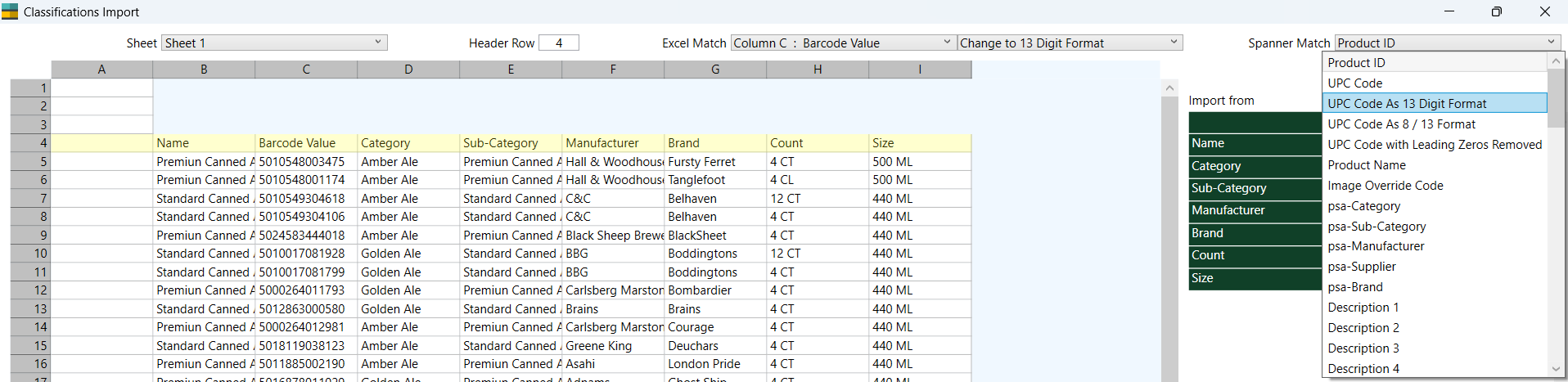
- Spanner Match: choose what the code is in Spanner. It starts at Product ID.
- Import from, Import to: on the right is a line for every other column in the file. Beside each one you want, choose where it goes. Leave the rest empty; they're ignored. The red cross clears a choice.
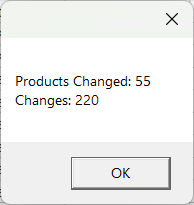
- Click Import. A message tells you how many products changed, and the window stays open in case you want to import something else from the same file.

Where a column can go
The Import to list has every classification in your document, and four other places:
| Import to | What it does |
|---|---|
| A classification | Writes the cell's value into that classification. |
| Product Name | Renames the product. |
| UPC Code | Sets the product's barcode. |
| Image Override Code | Sets the image name Spanner uses for the product's pictures, in place of the usual lookup. |
| Matches | Adds the cell's code to the product's other codes, such as a retailer's code. Codes are only ever added, never removed. |
Matching the codes
A row is matched to a product when the code in the file is exactly the same as the code in Spanner: every character, capital letters included. Barcodes are where this most often goes wrong, because the same barcode can be written several ways, and Excel drops the zeros from the front of a number.
So before you import, look at a few codes in the window and the same products in Spanner, and compare them. Then set the three match boxes from this table.
| The file has | Transform | Spanner Match |
|---|---|---|
| The same codes as your product IDs | No Transform | Product ID |
| Barcodes, whatever their lengths, and whether or not some have lost their leading zeros, such as 50213085 where Spanner has 0000050213085 | Change to 13 Digit Format | UPC Code As 13 Digit Format |
| Barcodes without their last digit, the check digit: 12 digits where Spanner has 13 | Add Check Digit | UPC Code |
| The barcode inside the description, such as 5000112637922 Brand A Cola 330ml | UPC in Product Name | UPC Code As 8 / 13 Format |
| Circana's own product code, its medium code, instead of a barcode | Change Circana Medium Name to UPC | UPC Code As 8 / 13 Format |
| A retailer's code that you keep in a classification | No Transform | That classification |
| Only the product's name, spelt exactly as in Spanner | No Transform | Product Name |
The transform changes the codes from the file, and Spanner Match says which form of Spanner's code to compare them with. Neither changes anything in your document: they are only used to find the product.
For barcodes, the second row is the one to try first. It writes both sides as 13 digits, adding zeros to the front of shorter ones, so 8, 12 and 13 digit forms of the same barcode all agree. Change to 8/13 Digit Format with UPC Code As 8 / 13 Format does the same job with short barcodes kept at 8 digits, and UPC Code with Leading Zeros Removed matches a file whose zeros have gone without changing the file's codes at all.
If the first try matches nothing, nothing has changed in your document. Try the next most likely row of the table. If it matches only some products, see Problems.

What gets changed
For every column you gave somewhere to go, the file is the master. Each matched product ends up with what its row says.
| In the file | What happens |
|---|---|
| A cell with a value | Replaces the product's value, if it is different. |
| A blank cell | Empties the product's value. This applies to classifications, Product Name, UPC Code and Image Override Code. A blank under Matches changes nothing. |
| A row whose code matches no product | Ignored. The import doesn't add products. |
| A row with no code | Ignored. |
| Two rows with the same code | The lower row is used. |
| A code that several products share | Every one of them is changed. |
| A product that is not in the file | Left as it is. |
The message afterwards
When the import finishes, a message gives up to three counts:
- Products Changed: how many products had at least one value changed.
- Changes: how many values changed altogether. Values that were already the same are not counted.
- Values Changed to Blank: how many of those changes emptied a value. The line is only there when some did. If the number surprises you, undo the import and look at the file.
It doesn't say how many rows found no product. To check, open the Product Coding report afterwards and look for products that are still empty.
Three more things to know
- Numbers and dates come as Excel stores them. A date arrives as a number such as 45992, and 25% as 0.25. If a column should come in as you see it, make it text in Excel first.
- Calculated classifications are skipped. A classification that works its values out from a formula is in the Import to list, but nothing is imported into it.
- The whole import is one step to undo. Edit › Undo puts every value back as it was.
Saving and running again
If you'll receive the same file again, save the import once and run it from the menu after that.
- Set the window up and check the import works.
- Click the small save icon, at the bottom of the window to the left of the Import button.
- Give it a name, such as Circana attributes, and click the green tick. A name you've used before asks whether to replace the old one.

The saved import remembers the file and where it is, the sheet, the header row, the three match boxes, and where each column goes. It appears under Interface › Saved Classifications Import, a menu that is only there once you have saved one.
Running a saved import
Put the new file where the old one was, with the same name, and choose the import from the menu. If everything is found, it runs straight away and shows the message, without opening the window.
| If | Spanner |
|---|---|
| The file isn't where it was | Asks you for it, starting in the folder it used to be in. The saved import keeps the old place. |
| The sheet isn't in the file | Uses the only sheet, or asks you which one. |
| A heading is missing from the file | Leaves that column out and imports the rest. |
| A classification is missing from the document | Leaves that column out and imports the rest. |
| The code's heading is missing from the file, the Spanner Match classification is missing from the document, or nothing was changed | Opens the window, set up as far as it could be, so you can see why. |
Headings are found by their text, not their column. So the report's columns can move about from month to month, as long as their headings stay the same.
Changing a saved import
Saved imports are listed in Tools › Settings, under Saved Classifications Import. Each has a row: its Name, File, Sheet, Header Row Number, Excel Match, Transform and Spanner Match, and the number of columns it maps. The ... button opens the list of columns, as pairs of Excel heading and Spanner classification. The arrows change the order on the menu, the red cross deletes an import, and the green plus adds one.
Two columns read a little differently from the window. Transform has shorter names, so the window's Change to 13 Digit Format is 13 Digit UPC Code here. Spanner Match is shown by its short name: ID, UPC, UPC13, UPC813, UPCTrimLeading0, Name, ImageOverride, or the heading of a classification.

Sharing with colleagues
A saved import is part of your own Spanner settings. To give it to a colleague, save your settings to a file with only Saved Excel Classifications Import ticked, and have them add it to theirs. Sharing Tables shows the buttons; it works the same way for imports.
For a shared import to find the file on each person's computer, start its File with %userprofile% in place of your own folder, for example %userprofile%\OneDrive - Organisation Name\Coding\Circana Attributes.xlsx. Spanner puts in each user's own folder when it runs.
Ask Spanner AI
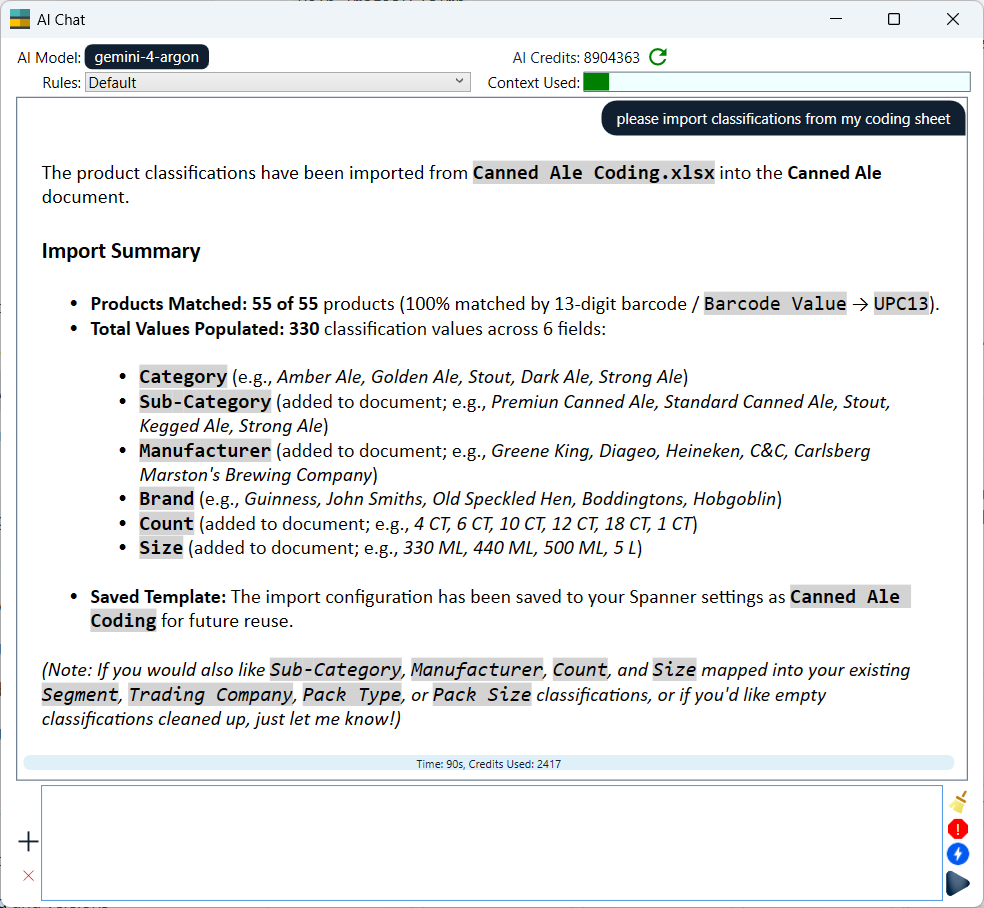
Spanner AI can do the whole import for you. It looks at the file, compares its codes with your products to choose the match, adds any classification the document doesn't have yet, and runs the import. Afterwards it tells you how many of the file's codes found a product, shows a few that didn't, and says how many values were emptied by blank cells.
- "Look at this Circana report and tell me which column matches my products."
- "Import the brand, flavour and pack size from it, matching on barcode."
- "How many of the file's codes found a product, and which didn't?"
- "Save that import as Circana attributes, so I can run it next month."
- "Run my Circana attributes import on this document."
Because a blank cell empties a value, it's worth asking Spanner AI to check a column for blanks before it imports over coding you already have. Everything it imports can be undone in one step, in the same way.
Problems
| You see | Because, and what to do |
|---|---|
| No Import button | No Excel Match column is chosen, or no other column has been given somewhere to go. |
| The headings in the lists are product data | Header Row is on the wrong row. Type the number of the row with the headings. |
| A classification isn't in the Import to list | It isn't in the document. Close the window, add it in the Document Editor, and start again. |
| No Product Matches | No code in the file is the same as any product's. Compare a few, then try another row of the table in Matching the codes. Look for spaces around the codes in Excel too. |
| No Product Data | No product has anything in the field chosen as Spanner Match, such as UPC Code in a document without barcodes. Choose a field your products do have. |
| No Update Data | No row below the header row has a code in the Excel Match column. Check the Header Row and the Excel Match column. |
| No Changes | The rows matched, and every value was already the same. You'll also see this if the only columns you chose go to calculated classifications. |
| Only some products changed | The others have codes written another way, often a different length of barcode. Run the import again with another transform: the products already done stay done. |
| Values have disappeared | The file had blank cells in a column you imported. Undo, then either fill the blanks in Excel or leave that column out. |
| A date came in as a number | That is how Excel stores it. Undo, make the column text in Excel, and import again. |
| A saved import opens the window | It couldn't find the code's heading in the file, or it ran and changed nothing. The window shows what it found. |
| An error, or nothing at all, when you pick the file | The workbook is probably open in Excel. Close it there and try again. |
Once your products are coded, write them to your product library so the coding is there for the next document: see Using a Product Library.