What it is for
Spanner reads a lot from folders: product pictures, shape files, import files and templates, settings files. Where a team keeps the master copies in one shared place, Synchronise brings each person's own copies up to date. For example:
- Product pictures kept on a shared drive, copied to a folder on each laptop, so they load quickly and are there when you work offline.
- Templates and import files that one person looks after, kept the same on every computer.
- A file you work on at two computers, kept as the latest version in both places.
Setting it up
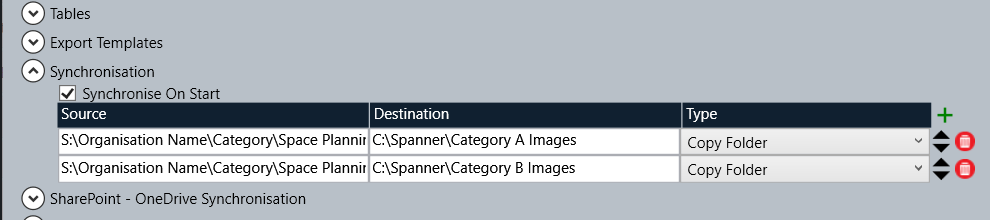
Each line of the set-up names two places and how files move between them.
- Open Tools › Settings and expand Synchronisation.
- Click the green + to add a line.
- In Source, put the full path of the first folder or file. In Destination, put the second.
- Choose the Type: the four types are below.
- Add as many lines as you need. The arrows move a line up or down, and the bin deletes it. Lines run in the order they are listed.
- Tick Synchronise On Start if Spanner should run every line each time it starts.
- Click the green tick to save your settings.
The Tools menu shows Synchronise once there is at least one line.
The four types
Two types work on folders and two on single files. Two copy one way only, and two copy whichever way is needed.
| Type | Direction | What happens |
|---|---|---|
| Synchronise Folder | Both ways | A file in one folder but not the other is copied across. Where both folders have a file and its dates differ, the newer copy replaces the older. |
| Copy Folder | Source to destination | A file missing from the destination is copied there. Where both have a file and its dates differ, the source's copy replaces the destination's, even if the destination's is newer. The source folder is never changed. |
| Latest File | Both ways | Source and Destination are files. The newer replaces the older. If only one of them exists, it is copied to the other place. |
| Copy File | Source to destination | The source file is copied over the destination file, every time. |
Spanner decides by the date and time each file was last saved, not by what is in it. If one of a line's folders does not exist yet, Spanner creates it. The file types create the destination's folder if they need to.
Paths for a whole team
A line written with your own folder, C:\Users\User Name\..., only works on your computer. To give the same lines to the whole team, start a path with one of these, and Spanner puts in each person's own folder when it runs:
| Start the path with | Spanner puts in |
|---|---|
%userprofile% | Your own user folder, such as C:\Users\User Name. |
%localAppData% | Your local application data folder, C:\Users\User Name\AppData\Local. |
%myDocuments% | Your Documents folder. |
%user% | Your Windows user name, anywhere in the path. |
[Code] | A path set up in Tools › Settings › Folder Path Substitutions, where each line pairs a Code with a Path. Write the code in square brackets. |
Write the last four exactly as shown, capitals included; %userprofile% can be written in any case. Don't mix %userprofile% with the others: in a path that has it, the others are left as written.
For example, a line with Source \\Server\Category Team\Spanner Images, Destination %userprofile%\Spanner\Images and Type Copy Folder gives everyone their own copy of the team's pictures, in their own Spanner folder.
To hand the lines out, open Tools › Settings, click Save Settings to File, tick Synchronisation alone, and send the file. Each person adds it with Add Settings from File. Sharing Tables explains the buttons, and how a settings file can update itself for a whole team.
Running it
From the Tools menu
- Open Tools › Synchronise. The Synchronisation window lists your lines, each with its source on the left and its destination on the right. A double arrow marks the two-way types, and a single arrow the copies.
- Click Synchronise on a line to run just that line, or Synchronise All, at the bottom right, to run every line in order.
- While a folder is copied, its line shows a progress bar and a count of files copied. When it finishes, the line says how many files were copied, or that there was nothing to copy.
A line that could not run says why: both folders missing, a source file not found, or an error, usually a folder you are not allowed to read or write.
Each time Spanner starts
With Synchronise On Start ticked, the same window opens as Spanner starts, runs every line, and closes itself when it has finished.

What it does not do
- Subfolders. Only the files directly in each folder are copied. Add a line for each subfolder you need.
- Deletions. Deleting a file in one place does not delete it in the other. With Synchronise Folder, a file you delete comes back from the other folder on the next run, so delete it in both.
- Merging. If a file is changed in both places between runs, the newer copy wins and the other change is lost.
- Protecting a destination. Copy Folder and Copy File overwrite the destination's files. Don't edit files there: your changes go the next time the line runs.
Spanner waits while files are copied, so a large first copy, such as a whole picture library, is best run when you don't need Spanner for a while.