Where tables are kept
Tables are part of your Spanner settings, on your computer, under your Windows sign-in. Two things follow.
- A table is not in a document. Send a colleague a Spanner document, and they open it with their own tables, not yours.
- A table you save reaches nobody else. To share it, you send it, as below.
Sending tables
One table
- Open Tools › Settings and expand Tables.
- Click Copy on the table's row. Its definition is now on the clipboard, as one line of text.
- Paste it into an email or a message.
Your colleague copies the line, opens their own Settings, and clicks Paste on any row of their Tables list. If the table has a lower table, send that too.
A set of tables
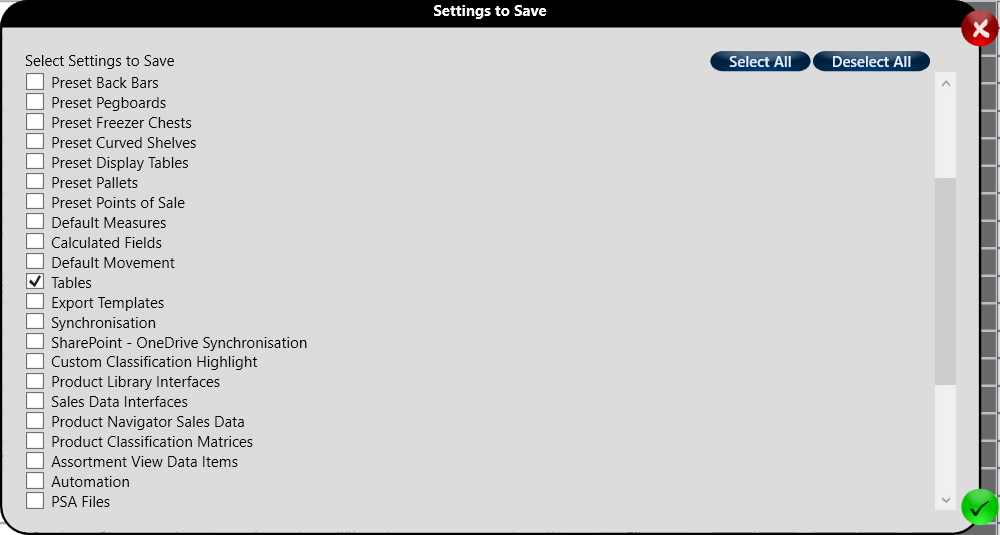
- Open Tools › Settings and click Save Settings to File, at the foot of the window.
- Everything is ticked to begin with. Click Deselect All, then tick Tables, and nothing else unless you mean to share it.
- Save the file. It has the ending
.spanner-settings.
The file holds every table you have, and which are favourites. A settings file can hold much more than tables, such as presets and import templates: only what you tick is written.
Adding or loading
Two buttons at the foot of Settings read a settings file. They treat the tables you already have very differently. A fourth button, Load Settings from Online, fetches settings that Cat Man Toolkit keeps online for your organisation, where that has been set up.
| Add Settings from File | Load Settings from File | |
|---|---|---|
| A table in the file that you don't have | Added. | Added. |
| A table in the file with the ID of one of yours | Replaces yours. | Replaces yours. |
| A table of yours that is not in the file | Kept. | Removed. |
| Your favourites | Replaced by the file's. | Replaced by the file's. |
So Add is the one to use for tables from a colleague, and Load for starting again from a known set. Whichever you use, nothing changes until you save your settings, so you can look through the Tables list first and close Settings without saving if it is not what you wanted.

Keeping a team in step
Where a team should all have the same tables, one person looks after them and the rest receive them without doing anything.
- The keeper builds and saves the tables, then saves them to a settings file in a folder everyone can read, such as a shared OneDrive or SharePoint folder that is synchronised to each computer.
- Each user, once, opens Tools › Settings, expands Miscellaneous, and puts the full path of that file in Auto Update Settings.
- From then on, each time Spanner starts it looks at the file. If the file has been saved again since it was last read, Spanner loads it.
To send out a change, the keeper saves the settings file again, over the old one. Each user gets it the next time they start Spanner.
Tables and documents
A table works with any document, but it can only show what the document has. This is why the same table can look different from one document to the next.
| You see | Because |
|---|---|
| A column is missing | It shows a measure, an outlet or a classification that this document does not have. Spanner leaves such a column out and says nothing. |
| A column is all zeros | The document has the measure, but no sales have been imported for the outlet or period the column shows. |
| A header reads differently | Headers are filled in from the document: its outlet, its periods, its planogram names. |
| A summary is empty | It follows the selected planogram or a filter, and nothing passes: no planogram is selected, or the filter lets nothing through. |
When a team shares tables, it helps to share the measures too: documents made from the same sales import templates have the same measure codes, and every table then works in every document. Next: Part 6, Tables with Spanner AI.