What they are
Spanner already tells the AI how to work in Spanner. Your rules add how you merchandise. They are plain words, added to the instructions the AI receives at the start of each conversation, so it takes them into account in everything it does there: filling a shelf, laying out a planogram, suggesting changes, or checking a planogram over.
You can keep as many sets as you like, each with its own name, for example one for each retailer, channel or category. One set is in use at a time.
Writing a set
- Open Tools › Settings and expand AI Settings.
- Under Merchandising Rules, click the green + to add a set.
- Give it a Name, such as Soft Drinks, Supermarkets, and write the rules in Details, one to a line. Press Enter for a new line.
- Add more sets in the same way. The arrows move a set up or down the list, and the bin deletes it.
- Click the green tick to save your settings.
Until you choose one, the first set in the list is in use. Spanner remembers the set in use by its place in the list, so after moving or deleting sets, check which one is in use.

Choosing the set in use
There are two places to choose, and both change the same setting, which Spanner remembers from one session to the next.
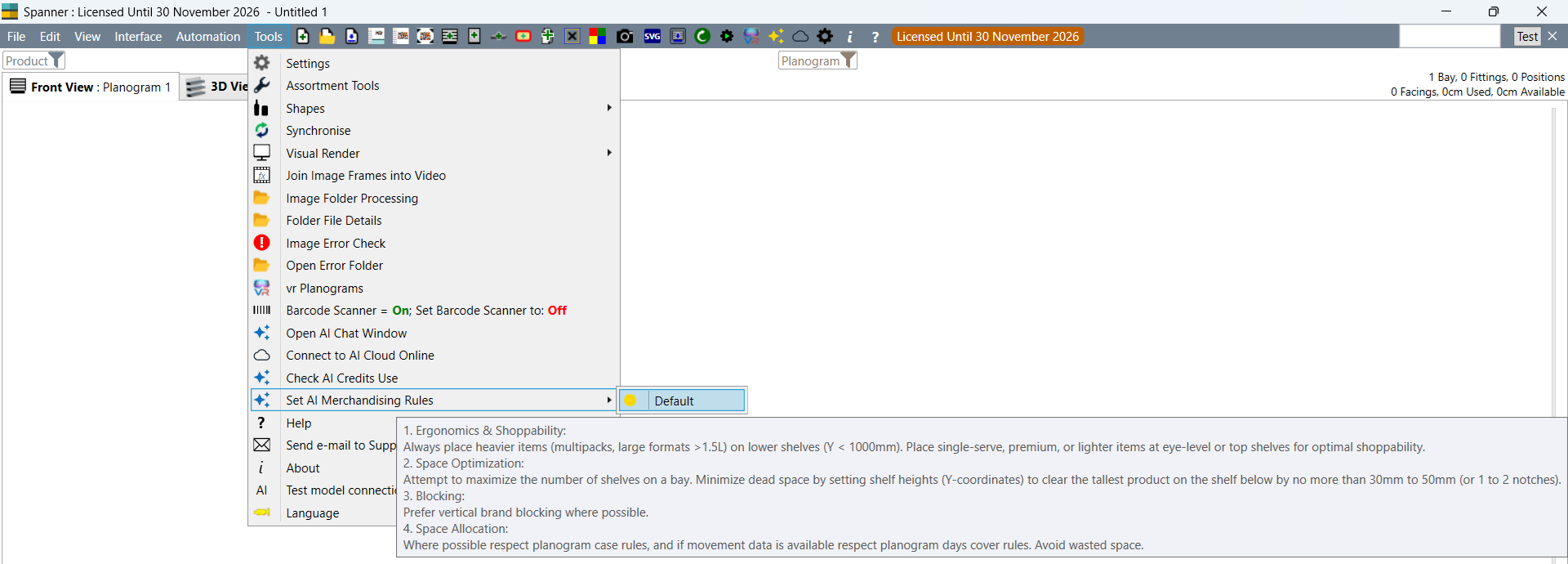
- Tools › Set AI Merchandising Rules lists your sets by name. The set in use has a gold dot. Rest the pointer on a name to read its rules, and click one to use it. The menu shows this item once you have at least one set.
- In the AI Chat window, the Rules list at the top does the same. Rest the pointer on it to read the set chosen.
Choose the set before you start a conversation: the next section explains why.
How each AI gets them
Every route gives the AI the set in use, but each reads it at a different moment. A change you make after that reaches the AI only once it reads the rules again.
| The AI reads your rules | After you change the set, or its rules | |
|---|---|---|
| Spanner's AI chat | When a conversation starts. | Clear the chat with the broom button, to start a new conversation. |
| An AI app on your PC, such as Claude Desktop | Each time the app asks Spanner for its tools, which it does at the start of a conversation. | Start a new conversation in the app. |
| An AI app through our cloud service, such as Microsoft 365 Copilot | Spanner sends the set in use when you connect, with Tools › Connect to AI Cloud Online. The app reads it at the start of each conversation. | Disconnect with Tools › Disconnect from AI Cloud Online, connect again, give the app the new session key, and start a new conversation. |
Your rules go to the AI model's provider with the rest of the conversation, like your messages. For a cloud connection, our service also keeps the set in use with the session, for up to 10 days, so the app can follow it. Using Spanner's AI chat and Using Spanner with AI apps explain where your data goes.
Writing good rules
- One rule to a line, the most important first.
- Use the names your documents use. Write classification headings and values exactly as they appear in Spanner, such as Brand, Pack Type or Sugar Content, so the AI can find the products a rule means.
- Give numbers: "at least 2 facings", "the bottom two shelves", rather than "enough" or "low down".
- Say which way: left to right as the shopper faces the fixture, top to bottom.
- Say which rule wins when two can't both be kept.
- Keep it short. A few clear lines are followed better than pages the AI has to weigh up. Every conversation carries the whole set, so a long set also uses a few more AI credits in Spanner's AI chat.
- Leave out how to use Spanner. The AI already knows that; your rules are about the category.
An example
Within a brand, group by Sugar Content: Regular to the left of Sugar Free.
Put the brand leader in the middle bays, on shelves 2 to 4 from the top.
Put Own Label to the right of the brand leader.
Multipacks of 12 or more go on the bottom two shelves.
Give every product at least 2 facings and 3 days cover.
If the space runs out, keep the facings rule and drop the products with the lowest rate of sale.
What rules can't do
- They are not checks. Spanner does not enforce them: they guide the AI, which can still misread or miss one. Check what it does, above all for rules with legal weight, such as where HFSS or age-restricted products may go.
- They only guide the AI. They make no difference when you plan by hand, and they are not saved in documents.
- The AI can't change them. It reads your rules, but you edit them in Settings.
- They are yours alone until you share them. They are part of your Spanner settings, on your computer. To give a team the same sets, use Save Settings to File with AI Settings ticked; that tick carries your other AI settings too. Sharing Tables explains settings files.