What it can do
| Explain | Say what the document is set up with, what stage it has reached, and what is missing or inconsistent for what you want to do. |
| The top row | Set the two time periods, the names of the two years, and the default outlet and channel. |
| Comments | Read the document's notes and write new ones. |
| Classifications | Add, rename, move and delete them. Write a calculated classification's formula, and tell you how many products fall under each value. |
| Outlets | Add, rename, move and delete them, and clear one outlet's sales data. |
| Measures | Add a measure or change one, with its descriptions, calculation and number formats. Move and delete them. |
| Calculated measures | Add one or change one. Move and delete them. |
| Movement | Tell you where movement is read from, and change the rows. |
| Stock defaults | Set minimum cases and the two days covers: for one planogram, for all of them, or for the document's default alone. |
| Substitutions | Set the scope and the share. Rename, move, empty and delete a substitution data set. |
| Models | Build and change a demand model, and give the document a demand or space model saved in your settings. |
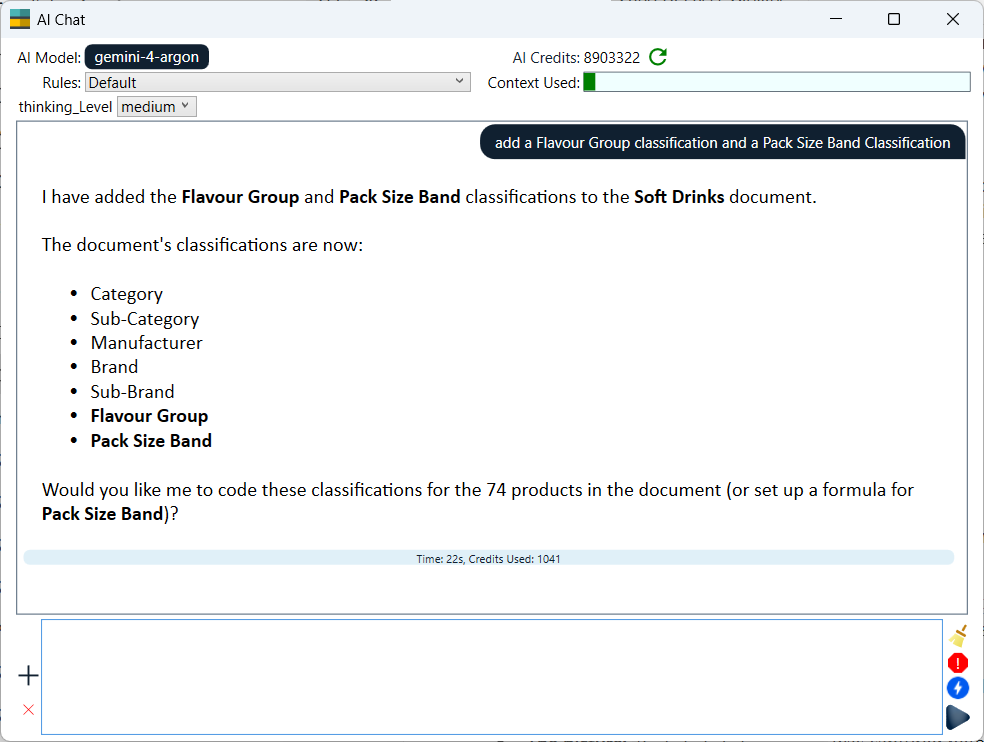
Asking
Say what you want in the words you would use to a colleague. Spanner AI looks up the codes and names in the document.
- "What is this document set up with, and what would I need to add before a range review?"
- "Add a classification called Price Tier after Brand. Make it Premium for Brand A and Brand B, Value for own label, and Mainstream for everything else."
- "Rename the outlet Grocery Mults to Grocery Multiples."
- "Clear the sales data for Retailer A. I am about to import the new period."
- "Add a calculated measure for value growth in the channel over 12 weeks."
- "Where does this document read movement from? Put the 12 week outlet figure first."
- "Set the default desired days cover to 5 for new planograms, and leave the planograms we have."
- "Note in the comments that the sales data is Circana to 4 October."
Three habits help.
- Ask what is there first. A request such as the first one above costs nothing and changes nothing, and the answer gives you both the same words for the next request.
- One change at a time. Look at the result, then ask for the next.
- Ask for the counts. After a formula, have it tell you how many products took each value. A value with none, or far too many, shows a rule that is not doing what you meant.
Deleting and undoing
Deleting a classification, an outlet, a measure or a data set deletes its data, and clearing an outlet empties it. Spanner AI is told to say what will go and to ask you first. If it does not, ask it to.
Spanner also refuses some requests outright, and tells the AI why:
| It will not | Until |
|---|---|
| Delete a measure that another measure is worked out from | That other measure's calculation is changed, or it is deleted first. |
| Delete a calculated measure that another one uses | The same. |
| Delete a substitution data set the demand model reads | The model is pointed at another set, or taken off the document. |
| Act on a name it can't find | You give a name the document has. Nothing is changed, and the AI is given the names that exist. |
Everything Spanner AI changes in a document can be undone. Say "Undo that" and it takes back its own last change, deleted data included. It never undoes a change of yours. You can also undo its changes yourself, in Spanner, like any other.
Still done by hand
- Changing a measure's code. Import templates, tables, labels and calculations all find a measure by its code, so Spanner AI does not change one. It can add a measure with the new code beside the old one.
- Making or editing a space model. That is done in the Space Model editor, from the Space Model heading. Spanner AI can tell you what the document's space model is, and apply one you have saved.
- Your defaults for new documents. They are in your Spanner settings, not in the document. Spanner AI can read and change settings only as far as you allow it, under AI permissions.
- Deciding. Which classifications a category needs, and which rate of sale to trust for movement, are your judgement. Spanner AI can show you what the data would support.
The commands behind it
Spanner AI makes most of these changes with automation commands: the same commands you can put in an automation of your own, in Settings. So a set-up you want for every new document can be saved once and run from the Automation menu.
| For | Commands |
|---|---|
| The top row | Times, Set Latest, Set Previous, Set Default Outlet, Set Default Channel |
| Classifications | Add Classification, Rename Classification, Move Classification To, Delete Classification, Add Default Classifications |
| Outlets | Add Outlet, Rename Outlet, Move Outlet To, Delete Outlet, Clear Outlet Sales Data |
| Measures | Add Measure, Move Measure To, Delete Measure, Add Default Measures |
| Calculated measures | Add Calculated Measure, Move Calculated Measure To, Delete Calculated Measure, Add Default Calculated Measures |
| Movement and stock | Set Movement, Add Default Movement, Case Rule, Minimum Days Cover, Desired Days Cover |
| Substitutions | Set Substitution Scope, Set Substitution Share, Rename Substitute Data, Move Substitute Data To, Clear Substitute Data, Delete Substitute Data |
| Models | Apply Demand Model, Apply Space Model |
To see what each command takes, hold the mouse over its name in the automation editor (from Spanner 2.5.1.2), or look it up in the Command Reference; Automations covers building one. The four that begin Add Default bring an older document up to your present defaults: they add what the document lacks. You can also ask: "Make me an automation that starts a new document with our measures, our movement rows and a 4 week second period."