Turning it on
A barcode scanner sends a barcode to the computer as if it had been typed: the digits, then Enter. Spanner watches for that only while you ask it to.
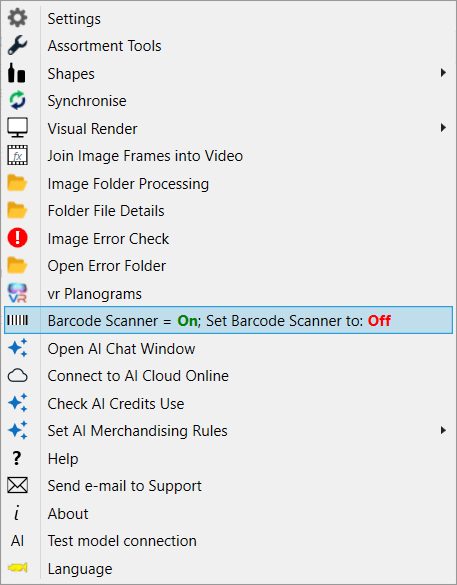
- Open the Tools menu. The item Barcode Scanner = Off; Set Barcode Scanner to: On shows the scanner is off.
- Click it. It now reads Barcode Scanner = On; Set Barcode Scanner to: Off.
Click it again to turn the scanner off. It is off each time Spanner starts.
Scanning onto the shelf
- Select a planogram that has shelves, and click in the planogram, so Spanner is listening to the keyboard.
- Click the shelf you want to fill.
- Scan a product. Spanner adds a position with one facing at the end of the shelf, and selects it.
- Scan the next product. Because the last one is selected, it goes beside it on the same shelf.
- To move to another shelf, click that shelf, then carry on scanning.
With nothing selected, a scan goes on the shelf you added last in this planogram, or else on the shelf with the most free space.
The barcodes Spanner reads
| Digits | Usually |
|---|---|
| 8 | EAN-8, on small packs. |
| 12 | UPC-A, on many American products. |
| 13 | EAN-13, on most products in the UK and Europe. |
| 14 | A code with an extra digit in front, often on cases and outers. |
Spanner looks for a product whose UPC is the code exactly as scanned, then one whose ID is, then one whose UPC is the same code with or without leading zeros. So a scanned 50123452 finds a product kept as 0000050123452, and a scanned 0000050123452 finds one kept as 50123452. Barcodes copied through Excel often lose their leading zeros, and this is why that doesn't matter here.
A 14-digit code that starts with a digit other than 0 is a case or outer code. It finds only a product with that exact UPC or ID, never the single unit inside.
Products Spanner doesn't know
- In another open document: Spanner copies the product into this document, then puts it on the shelf.
- In no open document: the Product Editor opens with the barcode filled in as the product's UPC and ID. Enter its name and dimensions and save, and it goes on the shelf. Close the editor without saving to skip it.
- Known, but with no dimensions: it can't go on a shelf without them, so the Product Editor opens for that product. Enter its dimensions and save, and it goes on the shelf. Close the editor without saving to skip it.
Spanner doesn't look in your product library, so that each scan stays quick. To scan products whose dimensions are in the library, bring them in from the library first, or keep a document of them open while you scan.
Facings
With the scanner on, typing a single digit with a position selected still sets its facings, as it does with the scanner off. Spanner waits a moment after a digit to see whether more follow: a digit on its own sets the facings, and a stream of digits is a scan.
Setting the scanner up
Most scanners work as they come. Check, in the scanner's own instructions, that it:
- works as a keyboard (often called HID or keyboard wedge mode);
- sends Enter after each barcode;
- types digits as the number keys along the top of the keyboard, not the numeric keypad;
- uses the same keyboard layout as Windows, such as UK.
To test it, open Notepad and scan something. You should see the digits, then a new line.
Barcode Scanner Latency
Spanner treats digits as one scan when each arrives within a short time of the last. That time is Barcode Scanner Latency, in Tools › Settings › Miscellaneous. It is counted in ten-millionths of a second, so the default, 1,000,000, is a tenth of a second. If a slow scanner, such as some Bluetooth ones, often fails to place products, try 2,000,000.
When a scan does nothing
- Check the Tools menu says Barcode Scanner = On.
- Check a planogram with shelves is selected.
- Click in the planogram itself. Spanner hears a scan only while the planogram area has the keyboard, not while you are in the navigator, the filters or another window.
- Test the scanner in Notepad: no new line means it isn't sending Enter.
- If scans work only sometimes, raise the latency.