What it can do
| Run commands | One or several, and tell you what changed. It looks up the names in the document first, so you can say the cola classification rather than its exact heading. |
| Build an automation | Work out the commands for a routine you describe, try them with you, and save them as an automation in the Automation menu, offered when you want it. |
| Change or remove one | Read your automations, change one, rename it, or delete it. |
| Explain one | Say what an automation does, step by step, and why a step might be doing nothing. |
| New Document Shortcuts | Make an automation that starts a document your way and shows on the start screen. |
| Preset planograms | List them and, from Spanner 2.5.1.2, add one to the document as a new planogram. |
| Show you things | Select a planogram or a fixture, set the product and planogram filters, fit the view, turn pictures on. These change nothing in the document. |
This guide is for Spanner 2.5.1.2 and later, which added preset planograms, Change Colour, and the checks on saved loops. It assumes you use Spanner AI: see Using Spanner's AI chat and Using Spanner with AI apps.
Asking
- "Make me an automation called Monthly Refresh that clears Retailer A's sales data, runs the Retailer A Weekly import and recalculates the measures. Offer it when a document is open."
- "Make a new document shortcut that starts a document with our Soft Drinks products and the Retailer A data."
- "What does my Tidy PSA automation do?"
- "Merge the products that share a barcode, padding the barcodes to 14 digits, and make the barcode each one's ID."
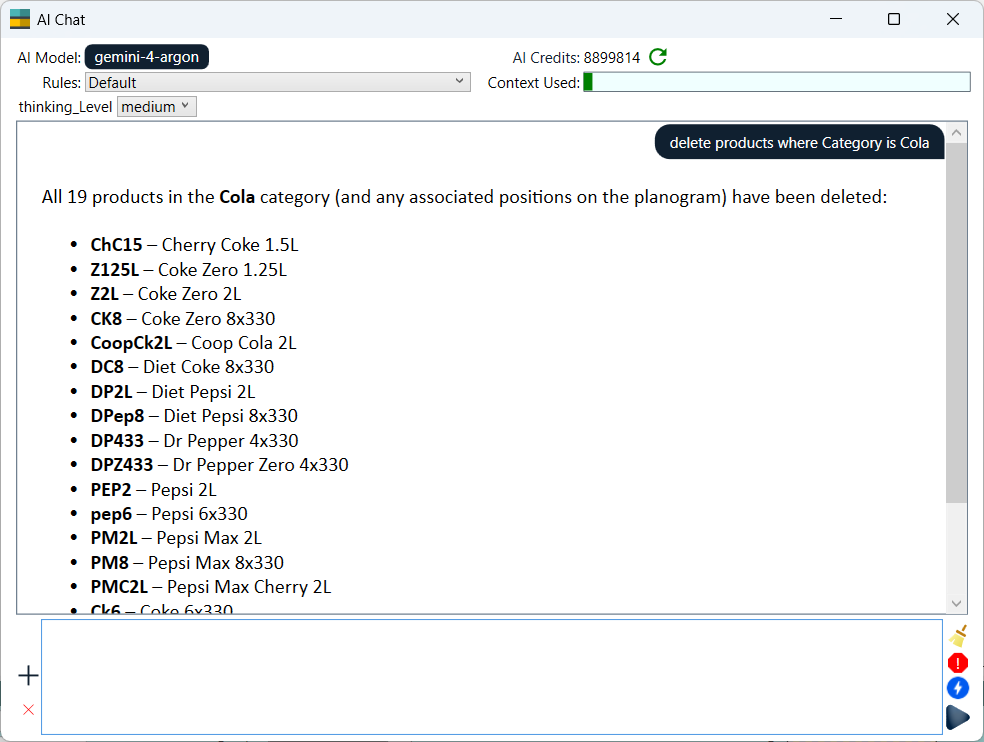
- "Delete the products where Category is Cola."
- "Add the 3 Bay 5 Shelves preset planogram and call it Aisle 3."
- "Export every planogram to PowerPoint with the Range Review template, to a file called Range Review on my desktop."
- "Show me only Brand A's products and fit the planogram to the screen."
Three habits help.
- Try before you save. Ask it to run the commands on a document first, look at the result, then ask it to save them as an automation. Saving runs nothing.
- Say when it should be offered: always, with a document open, or with a planogram selected.
- Name things as you see them. The names of your product library interfaces, sales data interfaces and export templates are the ones the commands need.
What it checks
Spanner checks every command the AI sends before any of them runs, and tells the AI why when it refuses one:
| It will not | Until |
|---|---|
| Run a list with a name Spanner doesn't know | The name is put right. Nothing in the list runs, so a typo can't leave the job half done. |
| Act on an outlet, measure, classification, planogram or file that isn't there | It uses a name that is. The AI is given the names that exist. |
| Write over a file you already have | You agree, or it chooses a new name. |
| Delete data you didn't plainly ask it to | You agree. When a deletion is its own suggestion, or goes further than you said, it is told to say what will go and ask first. |
| Save an automation with a loop or condition that can't work | The loop is put right. A command name Spanner doesn't know is refused too. |
What it changes in a document can be undone: say "Undo that" and it takes back its own last change. It never undoes a change of yours. Files it writes and settings it changes, such as a saved automation, can't be undone; delete or change them instead.
Permissions
Some commands need an AI permission, set in Spanner. Without it, the AI is told which permission is missing, and nothing runs.
| To | It needs |
|---|---|
| Open a document, a PSA or a Spaceman file, or import from one | Read Files |
| Save, export, or write a picture, or export to a product library | Write Files |
| Save a new automation | Add Settings |
| Change or delete an automation | Delete Settings |
| Load a settings file | Read Files and Add Settings, and Delete Settings as well when it replaces your settings rather than adding to them |
In Microsoft 365 Copilot and other AI apps, commands that only change what you see, such as selecting and filtering, run without asking you to confirm each one. Anything that changes the document, a file or your settings is confirmed first.
What stays with you
- Running an automation that needs you at the screen. Load Sales Data can ask for a file, and a loop runs as a whole, so the AI can put these in an automation but asks you to run it from Automation › Automation. It imports sales data itself with its own import tool.
- Undo and Redo of your own changes. It only takes back its own.
- Making a preset planogram. Use Automation › Create Preset Planogram, as in Part 4; the AI can then add it.
- Deciding. Which steps a routine needs, and which outlet or template is the right one, are your call. The AI can tell you what each command would do.